Firestore in SwiftUI
Firestore makes use of collections as storage structure. Each collection has one or more documents which are made up of attributes that contain the actual data.
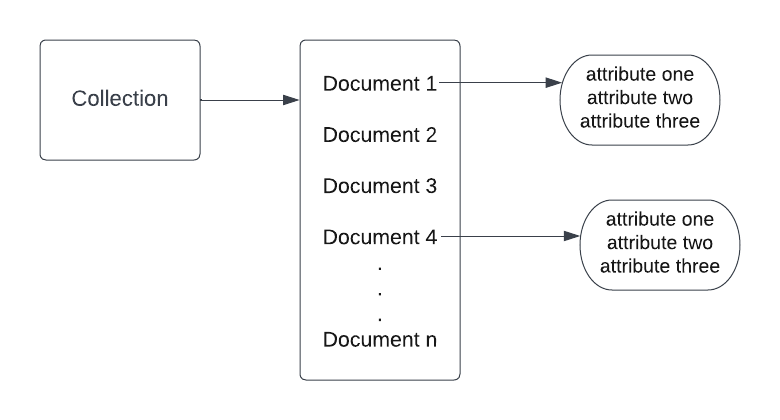
Structure of firestore storage
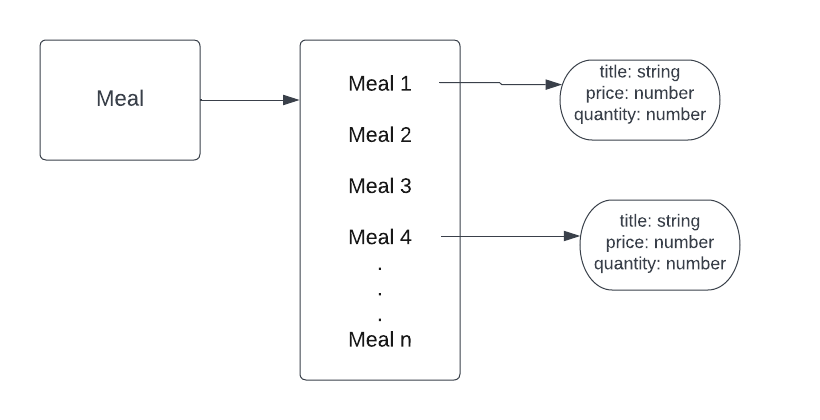
Structure with examples
Similarly, firestore can store many collections.
References
A reference can be created for collection as well as document. Creating a reference does not perform any network operation, it only point to a location in the database.
For e.g reference to a collection
let mealCollectionRef = db.collection("Meal")For e.g reference to a document
let mealOneDocumentRef = db.collection("Meal").document("Meal 1")Note: A document can have a collection too. For instance, a review needs data from the reviewer and the review itself.
-
Meals
-
Meal one
-
title : "Burgers" -
reviews
- review one
from : "alex"review : "Good"- review two
from : "tom"review : "bad"
-
-
Meal Two
-
In the above, we have reviews as a sub-collection of document “Meal one” since reviews contain large number of data.
Referencing a sub-collection
let reviewRef = db.collection("Meals").document("Meal one").collection("reviews").document("review one")Note: sub-collections need to be deleted manually, even if the parent document and collection are deleted
Create references
Document reference with generated id
var docRef: DocumentReference? = nilCollection Reference with generated id
var colRef: CollectionReference? = nilRead Documents
Multiple documents
To fetch multiple documents in a collection, we use getDocuments().
getDocuments() returns documents in querySnapshot as a list.
querySnapshots contain several documents, from which we can extract several or one document.
db.collection("meals").getDocuments() { (querySnapshot, error)  in
	if let error = error {
		print("Error getting documents: \(error)")
	} else {
		let documents = querySnapshot!.documents
		print("\(documents)")
	}
}

// OUTPUT
//[,
// ,
// ,
// ,
// ,
// ,
// ,
// ,
// ,
//]
Single document
To fetch a single document, we loop through the documents obtained from querySnapshots .documents.
db.collection("meals").getDocuments() { (querySnapshot, error) in
	if let error = error {
		print(" Cannot fetch documents")
	} else {
		for document in querySnapshots!.documents {
		   print("\(document.data())")
	        }//for
	}//else
}//getDocument
Get data
Fetching data from a single document using .data from document
db.collection("meals").getDocuments() { (querySnapshot, error)  in
   if let error = error {
      print("Error getting documents: \(error)")
   } else {
        let documents = querySnapshot!.documents
	print("Documents list: \(documents)")
	for document in documents {
	    print("Data from document: \(document.data())")
	}
	    print("\(documents)")
    }//else
}//getDocuments()

	// OUTPUT
//Data from document: ["title": Mac and cheese, "price": 125, "quantity": 4]
//Data from document: ["title": burger, "price": 125.5, "quantity": 2]
//Data from document: ["title": Mac and cheese, "price": 125, "quantity": 4]
//Data from document: ["title": Mac and cheese, "price": 125, "quantity": 4]
//Data from document: ["title": Pasta, "price": 467, "quantity": 6]
//Data from document: ["title": Mac and cheese, "price": 125, "quantity": 4]
//Data from document: ["title": Mac and cheese, "price": 125, "quantity": 4]
//Data from document: ["title": Pizza, "price": 400, "quantity": 2]
//Data from document: ["title": Mac and cheese, "price": 125, "quantity": 4]
//Data from document: ["title": Mac and cheese, "price": 125, "quantity": 4]
Extracting single attributes
db.collection("meals").getDocuments() { (querySnapshot, error)  in
	if let error = error {
	   print("Error getting documents: \(error)")
	} else {
	  let documents = querySnapshot!.documents
	   //print("Documents list: \(documents)")
	  for document in documents {
	   //print("Data from document: \(document.data())")
		let data = document.data()
		let title = data["title"]
		let price = data["price"]
		let quantity = data["quantity"]
		print("title: \(title ?? "No title")")
		print("price: \(price ?? "No price")")
	        print("quantity: \(quantity ?? "No quantity")")
           }//for
	 }//else
}//getDocuments

   // OUTPUT
//title: Mac and cheese
//price: 125
//quantity: 4
//title: burger
//price: 125.5
//quantity: 2
//title: Pizza
//price: 400
//quantity: 2
Add data
Adding data with specific document id
let data: [String: Any] = [
		"title": "Grilled lobster",
		"price": 30,
		"quantity": 2,
		"type": "Dinner"
]

func pushData() {
	db.collection("meals").document("five").setData(data) { err in
		if let err = err {
			print("Error writing to document: \(err)")
		} else {
			print("Data successfully written to doc")
		}//else
	}//setData
}//Push data
Adding data with auto-generated document id
docRef = db.collection("meals").addDocument(data: data) { err in
	if let err = err {
		print("Error adding document: \(err)")
	} else {
        	print("Document \(self.docRef!.documentID) added").
        }
}
Adding data from classes/struct
public struct Place: Codable {
	let name: String
	let isCapital: Bool?
	let population: Int?

	enum CodingKeys: String, CodingKey {
		case name
		case isCapital = "capital"
		case population
	}//enum
}//struct
// In ObservableObject class
let places = Place(name: "China", isCapital: false, population: 1449323776)
do {
try db.collection("Places").document("Asia").setData(from: places) } catch let error {
print("Error writing ro firestore \(error)")
}Note: You may get an error “Extraneous argument label 'from:' in call”. This is because firestore makes use of an extension (FirebaseFirestoreSwift) to be able to save custom objects such as struct.
Fix: import FirebaseFirestoreSwift.
In case this is missing from your imports, just go to Targets → Frameworks, Libraries, and Embedded Content. Click on +, search for the dependency: “FirestoreFirebaseSwift” and click on add

Adding dependency in targets
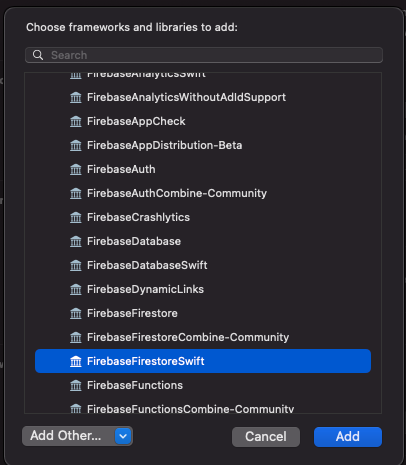
FirebaseFirestoreSwift dependency
If using pods:
pod 'FirebaseFirestoreSwift'Updating data
db.collection("Places").document("Asia").updateData(["name": "Australia", "capital":false]) { error in
	if let error = error {
	   print("Error updating document: \(error)")
	} else {
	   print("Document successfully updated")
	}
}
Update data using a timeStamp
db.collection("Places").document("Asia").updateData(["lastUpdated":FieldValue.serverTimestamp()]) { error in
	if let error = error {
		print("Error updating document: \(error)")
	} else {
		print("Document successfully updated")
	}
}
Update element in an array
db.collection("Places").document("Asia").updateData(["Ocean": FieldValue.arrayUnion(["Pacific"]) { error in
	if let error = error {
		print("Error updating document: \(error)")
	} else {
		print("Document successfully updated")
	}
}
Incrementing number value
Passing no argument will increase the value by 1
db.collection("Places").document("Asia").updateData(["population": FieldValue.increment(Int64(10))]) { error in
	if let error = error {
	   print("Error updating document: \(error)")
	} else {
	   print("Document successfully updated")
	}
}Note: FieldValue.increment works only on Int64 or Double
Deleting a field
To mark a field for deletion we use updateData
db.collection("Places").document("Asia").updateData(["population": FieldValue.delete()]) { error in
			if let error = error {
				print("Error updating document: \(error)")
			} else {
				print("Document successfully updated")
			}
		}
Delete a document
db.collection("Places").document("Asia").delete() { err in
    if let err = err {
        print("Error removing document: \(err)")
    } else {
        print("Document successfully removed!")
    }
}
Example
Step 1: Initialize firestore
import FirebaseCore
import FirebaseFirestore

FirebaseApp.configure()

let db = Firestore.firestore()
Step 2: Create a model
import Foundation

struct Meal: Identifiable {
	var id = UUID()
	var title: String
	var price: Double
	var quantity: Int

}
Step 3: Create a view
struct MealView: View {
    @StateObject var viewModel = MealsViewModel()
    var body: some View {
	List(viewModel.meals) { meal in
	   VStack(alignment: .leading) {
               Text(meal.title)
		  .font(.headline)
		Text("\(meal.price)")
		  .font(.subheadline)
		Text("\(meal.quantity)")
		   .font(.footnote)
	    }//VStack
	 }//List
	.navigationTitle("Meals")
	.onAppear() {
	   self.viewModel.fetchData()
	}
    }//body
}//MealView
Step 4: Create a viewModel
import Foundation
import FirebaseFirestore

class MealsViewModel: ObservableObject {
  @Published var meals = [Meal]()
  private var db = FirebaseManager.shared.firestore
  private var docRef : DocumentReference? = nil

   func fetchData() {
    db.collection("meals").addSnapshotListener { (querySnapshot, error) in
        guard let documents = querySnapshot?.documents else {
	    print("No documents")
	    return
	}
	self.meals = documents.map {
	   queryDocumentSnapshot -> Meal in
	   let data = queryDocumentSnapshot.data()
	   let title = data["title"] as? String ?? ""
	   let price = data["price"] as? Double ?? 0.0
	   let quantity = data["quantity"] as? Int ?? 0

	return Meal(id: .init(), title: title, price: price, quantity: quantity)
	}
     }
   }// Fetch data

   func pushData() {
	docRef = db.collection("meals").addDocument(data: ["title": "Mac and cheese", "price": 125, "quantity": 4]) { err in
	if let err = err {
	   print("Error adding document: \(err)")
	} else {
	    print("Document \(self.docRef!.documentID) added")
	}
     }
   }//Push data
}
The meals variable is wrapped with the @Published property. We use @Published property wrapper for all variable we want our view(UI) to listen to.
To be able to use the @Published property wrapper, the class must conform to the ObservableObject protocol.